Elastic Block Store (EBS)
Show slides
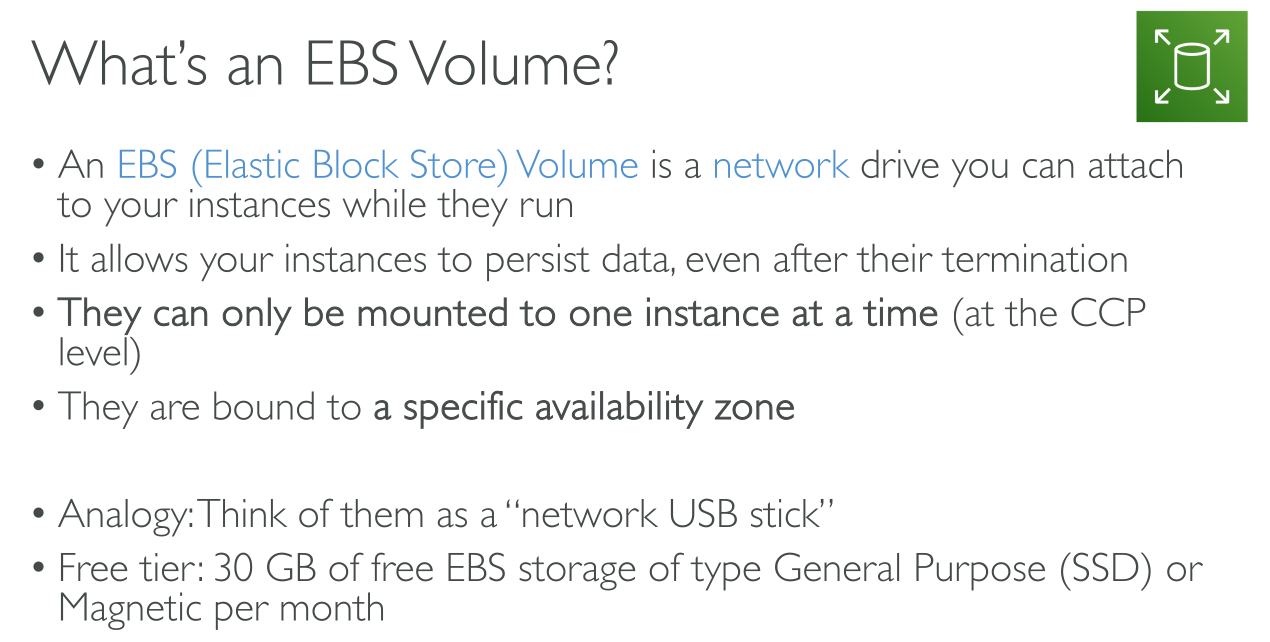
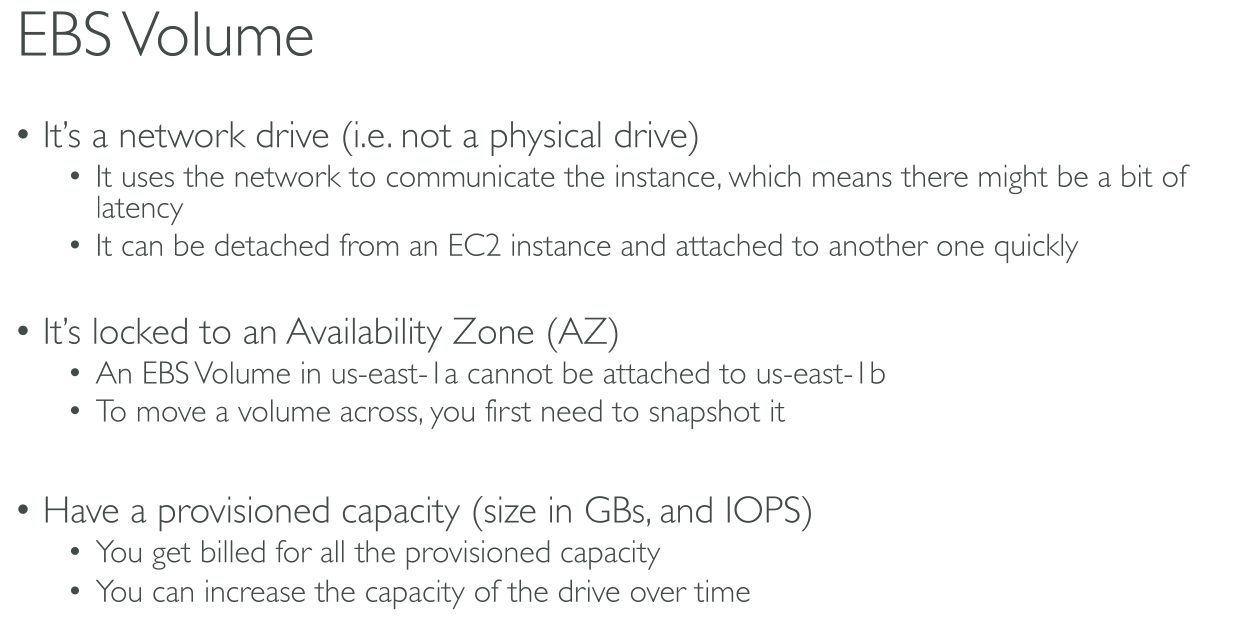
After you attach a volume to an instance, you can use it as you would use a physical hard drive, you can dynamically increase size, modify the provisioned IOPS capacity, and change volume type on live production volumes
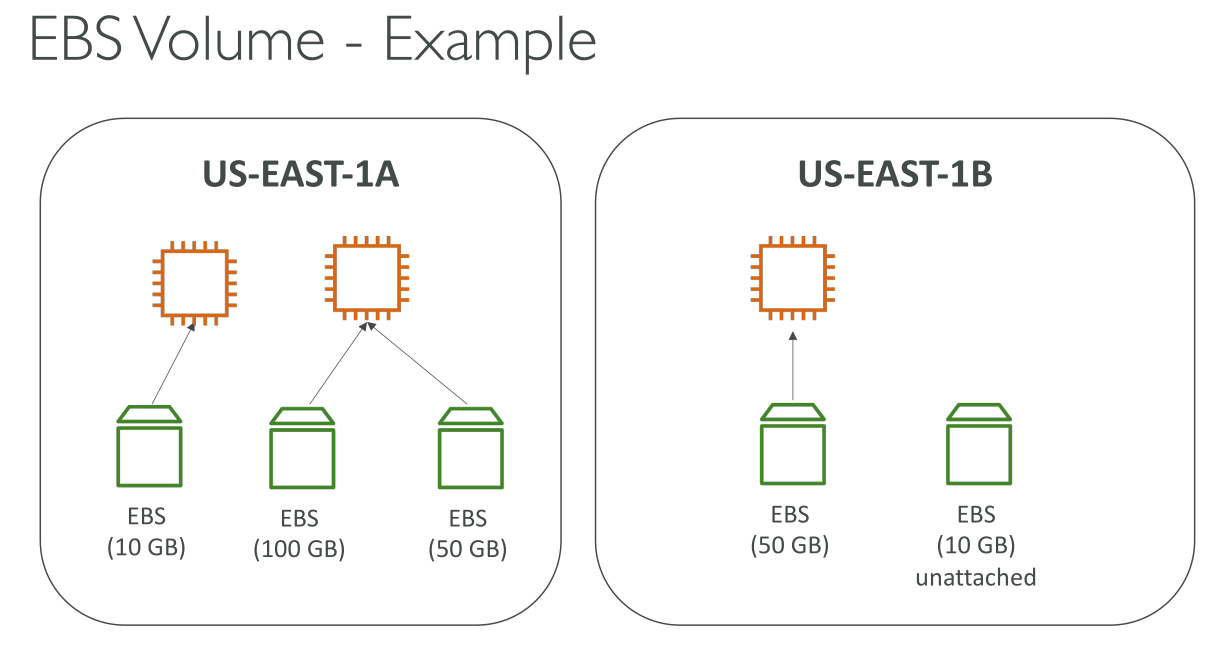
You can attach multiple EBS volumes to a single instance. The volume and instance must be in the same Availability Zone.
Depending on the volume and instance types, you can use Multi-Attach to mount a volume to multiple instances at the same time.
You can get monitoring data for your EBS volumes, including root device volumes for EBS-backed instances, at no additional charge, see Amazon CloudWatch metrics for Amazon EBS
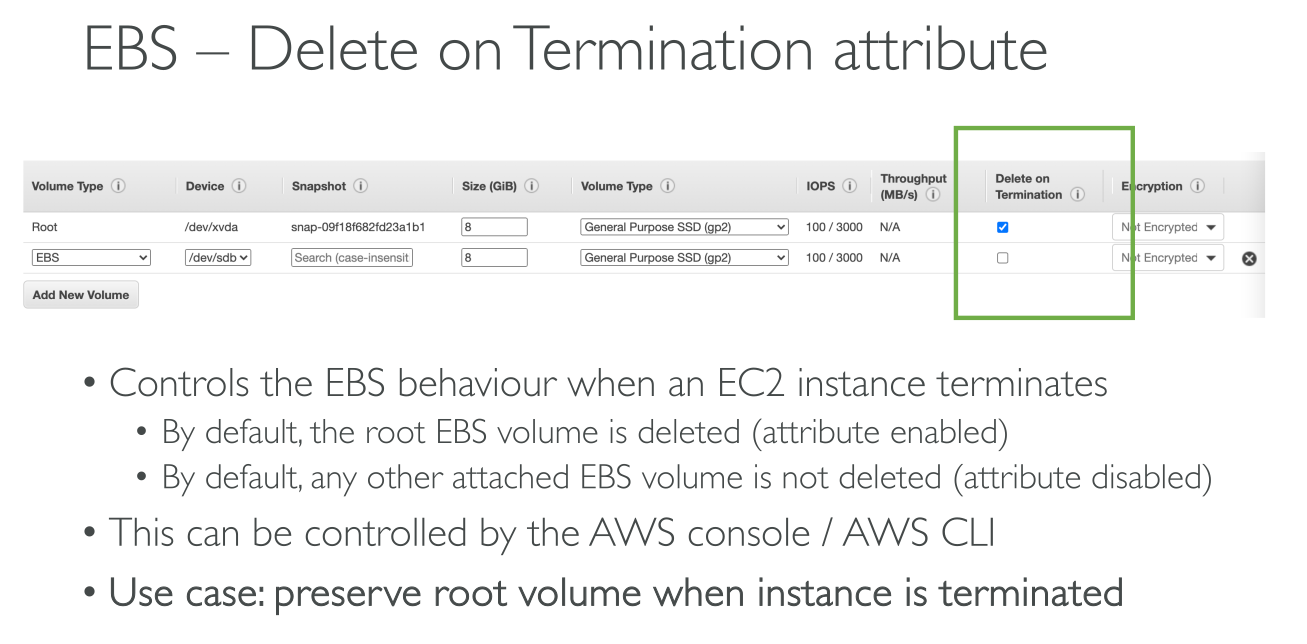
If the check box for Delete on Termination is checked, the volume(s) will delete upon termination of the EC2 instance. By default, the root EBS volume that is created and attached to an instance at launch is deleted when that instance is terminated.
The physical block storage used by deleted EBS volumes is overwritten with zeroes before it is allocated to a new volume.
Since EBS volumes are network attached, if you select a high throughput disk type and attach it to an instance type that’s got little bandwidth compared to the disk throughput, the instance’s network card will act as a bottleneck.
Storage metrics
Storage performance is the combination of I/O operations per second (IOPS) and how fast the storage volume can perform reads and writes (storage throughput).
Throughput = IO Size x IOPS
Throughput can be capped on its own.
-
IO (block) Size
-
IOPS: The number of I/O operations completed each second. Total IOPS is the sum of the read and write IOPS.
-
Latency: The elapsed time between the submission of an I/O request and its completion.
-
Throughput: The number of bytes each second that are transferred to or from disk. This metric is reported as the average throughput for a given time interval.
-
Queue Depth: The number of I/O requests in the queue waiting to be serviced. These are I/O requests that have been submitted by the application but have not been sent to the device because the device is busy servicing other I/O requests. Time spent waiting in the queue is a component of latency and service time (not available as a metric). This metric is reported as the average queue depth for a given time interval.
Data Encryption
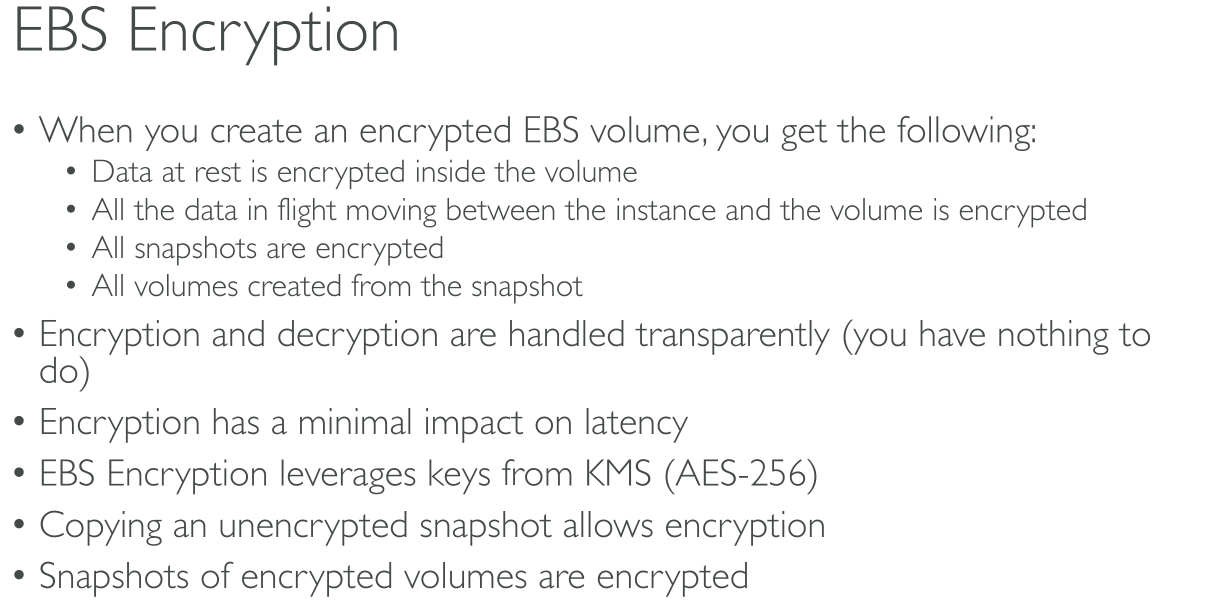
Amazon EBS encryption uses 256-bit Advanced Encryption Standard algorithms (AES-256) and an Amazon-managed key infrastructure.
The encryption occurs on the server that hosts the EC2 instance, providing encryption of data-in-transit from the EC2 instance to Amazon EBS storage.
Amazon EBS encryption uses AWS KMS keys when creating encrypted volumes and any snapshots created from your encrypted volumes. The first time you create an encrypted EBS volume in a Region, a default AWS managed KMS key is created for you automatically.
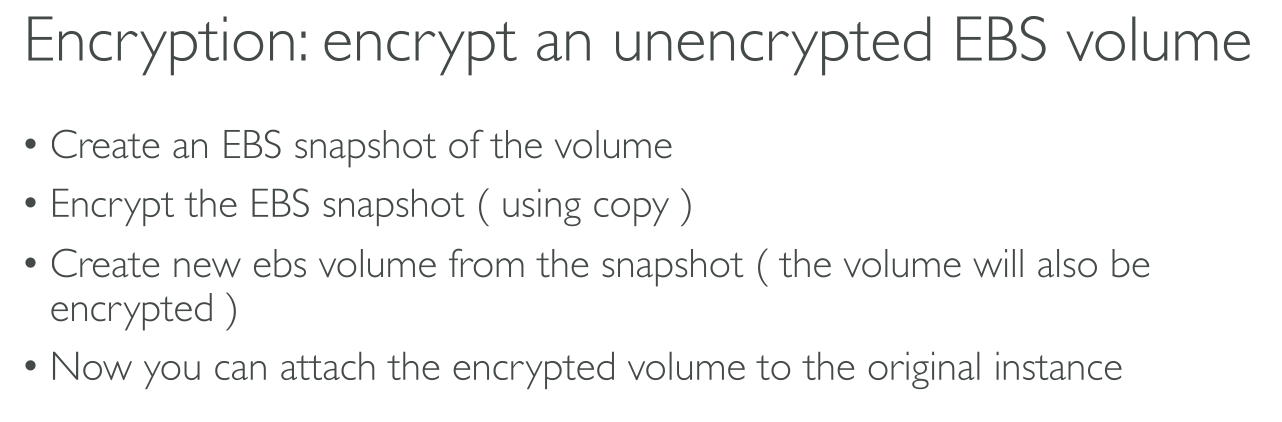
To encrypt an already created volume:
-
Power down the machine if you’re working with the root volume (recommended).
-
Create an encrypted snapshot.
-
Create an EBS volume from that snapshot.
-
Attach the volume.
Data Security
If you have procedures that require that all data be erased using a specific method, either after or before use (or both), such as those detailed in DoD 5220.22-M (National Industrial Security Program Operating Manual) or NIST 800-88 (Guidelines for Media Sanitization), you have the ability to do so on Amazon EBS. That block-level activity will be reflected down to the underlying storage media within the Amazon EBS service.
Volume types
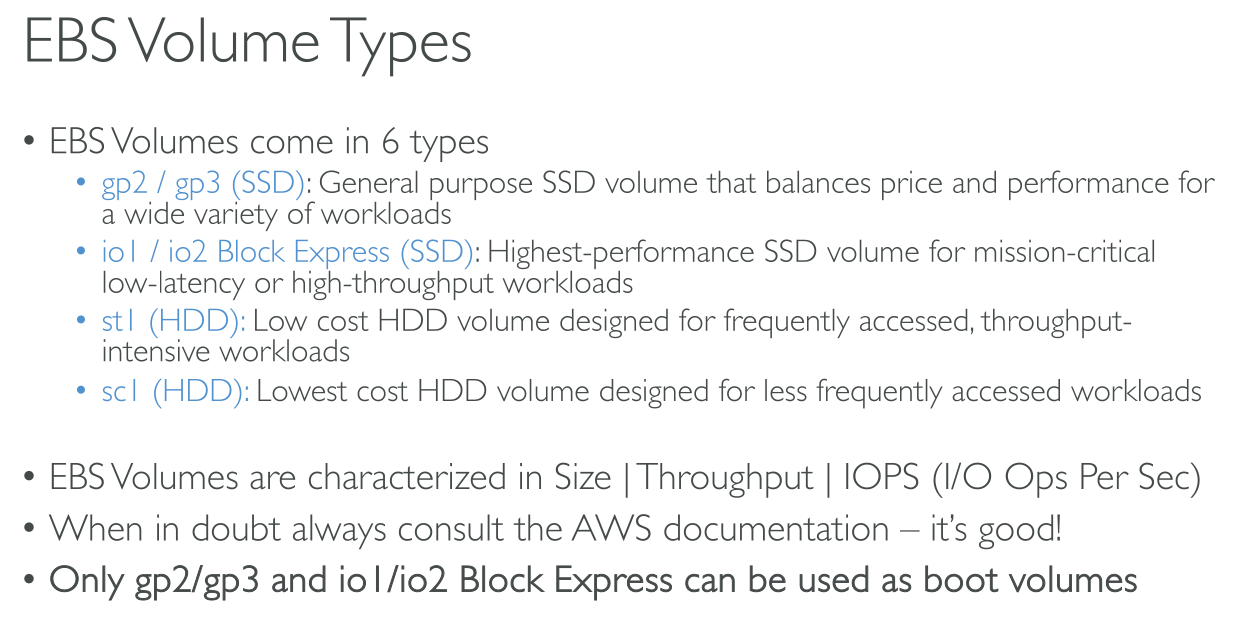
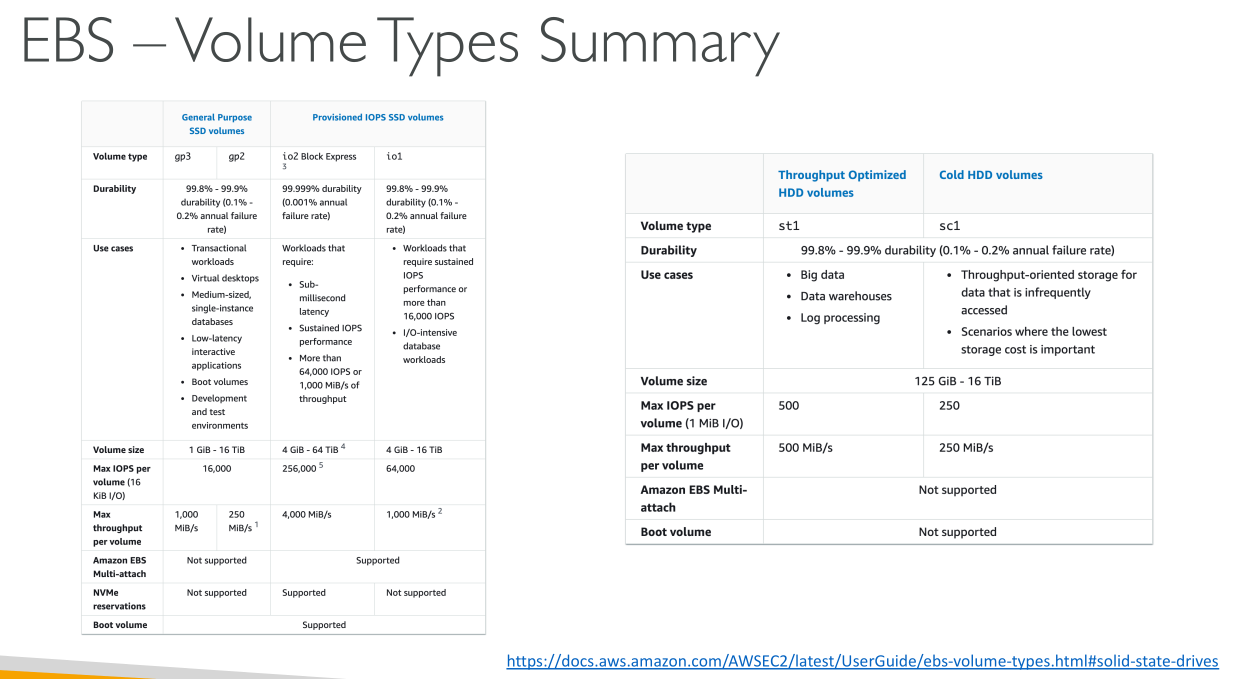
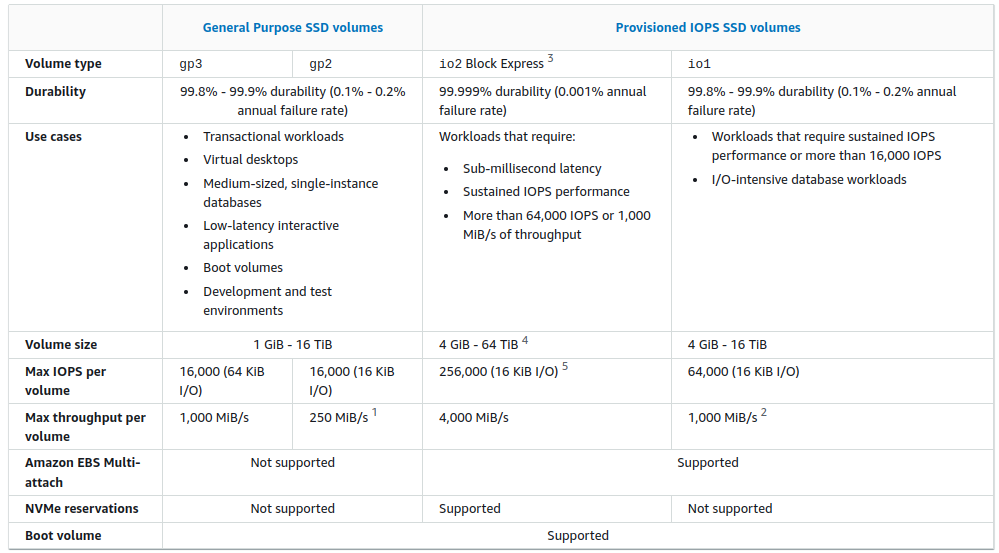
General Purpose SSD
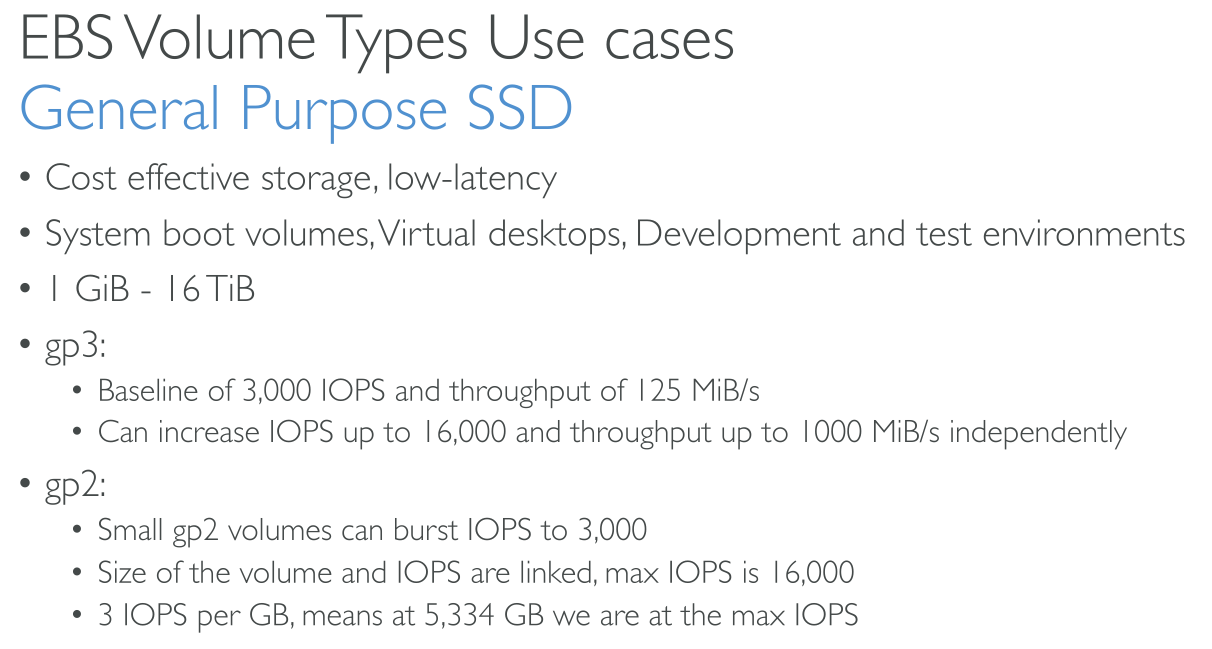
Size: 1GiB → 16TiB
Use cases:
-
Virtual desktops
-
Medium sized single instance databases
-
Low latency apps
-
Dev/Test environment
-
Boot volumes
GP3
No credit bucket architecture.
Baseline: 3000 IOPS and 125MiB/s Throughput. Up to: 16.000 IOPS and 1GiB/s Throughput.
Baseline cost (3000 IOPS, 125 MiB/s) is cheaper than GP2.
IOPS and Throughput are indipendent from each other and configurable at an extra cost (they’re still capped by the volume size):
-
500 IOPS/GiB → Max IOPS (16.000) at 32GiB in size.
-
0.25 MiB/s per IOPS → Max throughput at 4.000 IOPS and 8GiB in size.
GP2
It relies on a credit system. The credits bucket can contain up to 5.4 milions credits and it starts off full, which means 30 minutes at full burst and more because of the replenishment.
It has an initial I/O credit allocation. When you’re out of credits, you can’t perform any more operations.
1 credit = 16KiB chunk of data (160Kib is 10 credits)
So 1 IOPS = 16KiB x 1s
When I/O demand drops to baseline performance level or lower, the volume starts to earn I/O credits at a rate of 3 I/O credits per GiB of volume size per second.
Baseline performance:
-
IOPS: 100 → 16.000 scaling based on volume size (3 IOPS/GiB). Maximum at (16.000/3 =) 5,334 GiB.
-
Throughput: up to 250MiB/s
So the bucket replenishes at a rate of 3 credits per second for disks smaller than 33,33 GiB (100 IOPS), up to 16.000 credits per second for disks 5,334 GiB or larger.
At 1TiB it replenishes at 3.000 credits per second, which allows to have unlimited burst.
If the volume is small it can still burst to 3.000 IOPS by depleting the bucket.
Provisioned IOPS SSD
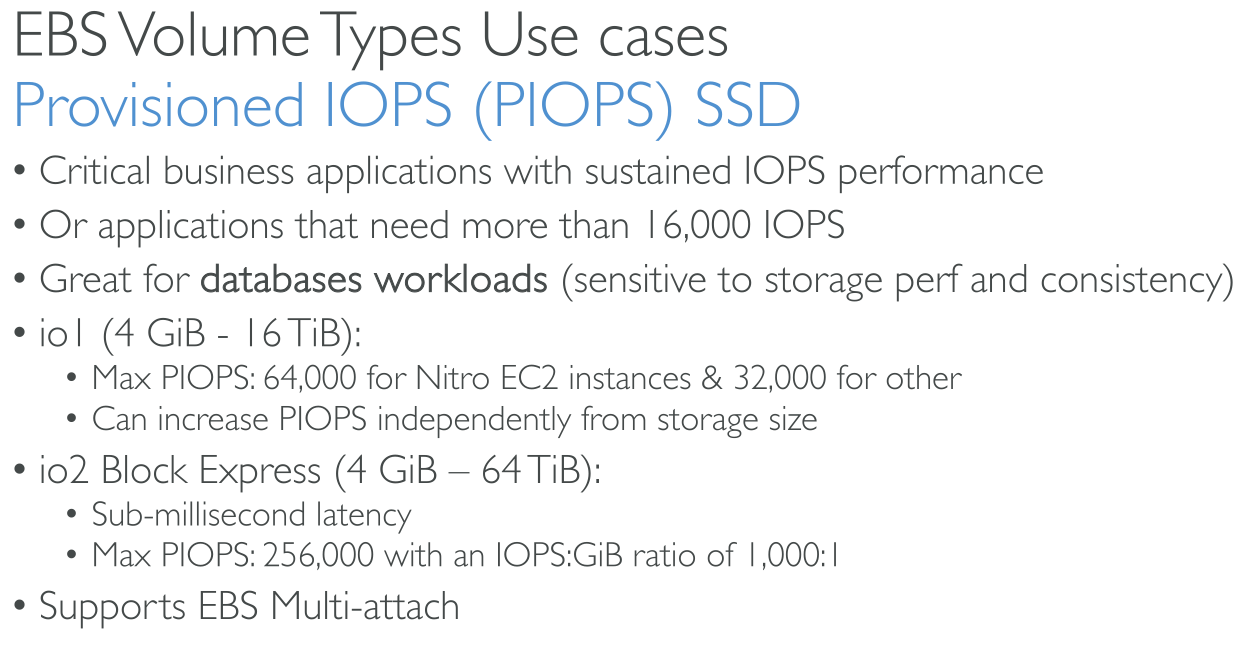
The highest performance Amazon EBS storage volumes designed for critical, IOPS-intensive, and throughput-intensive workloads that require low latency. Sub-millisecond average latency, Storage capacity up to 64 TiB (65,536 GiB), Provisioned IOPS up to 256,000. For applications needing sustained IO performance, > 16000 IOPS and databases. The only EBS storage that supports Multi-Attach.
IOPS are configurable indipendent of the volume size.
Size: 4GiB → 64TiB
Use cases:
-
You want smaller volumes
-
You want performance not achieavable with GP SSDs
|
Per Instance Performance Using several multiple high performance volumes attached to an instance doesn’t mean that their throughput or IOPS will add up indefinitely: every instance type and size has overall performance limits. E.g.: You can attach 4 io1 disks and get to 260.000 IOPS and 7,5GiB/s throughput on a given instance type and size; adding more won’t result in higher IOPS or throughput. |
IO2 Block Express
-
io2 Block Express: (4GiB - 64TiB):
-
max 256000 IOPS (Nitro) - 32000 (others)
-
IOPS:GiB ratio 1000:1: Maximum IOPS can be provisioned with volumes 256 GiB and larger (1.000 IOPS × 256 GiB = 256,000 IOPS).
-
Sub-millisecond average latency
-
Storage capacity up to 64 TiB (65.536 GiB)
-
IO1
-
io1 (4GiB - 16TiB):
-
max 64000 IOPS (Nitro) - 32000 (others)
-
IOPS:GiB ratio 50:1: The maximum IOPS can be provisioned for volumes that are 1.280 GiB or larger (50 × 1.280 GiB = 64.000 IOPS).
-
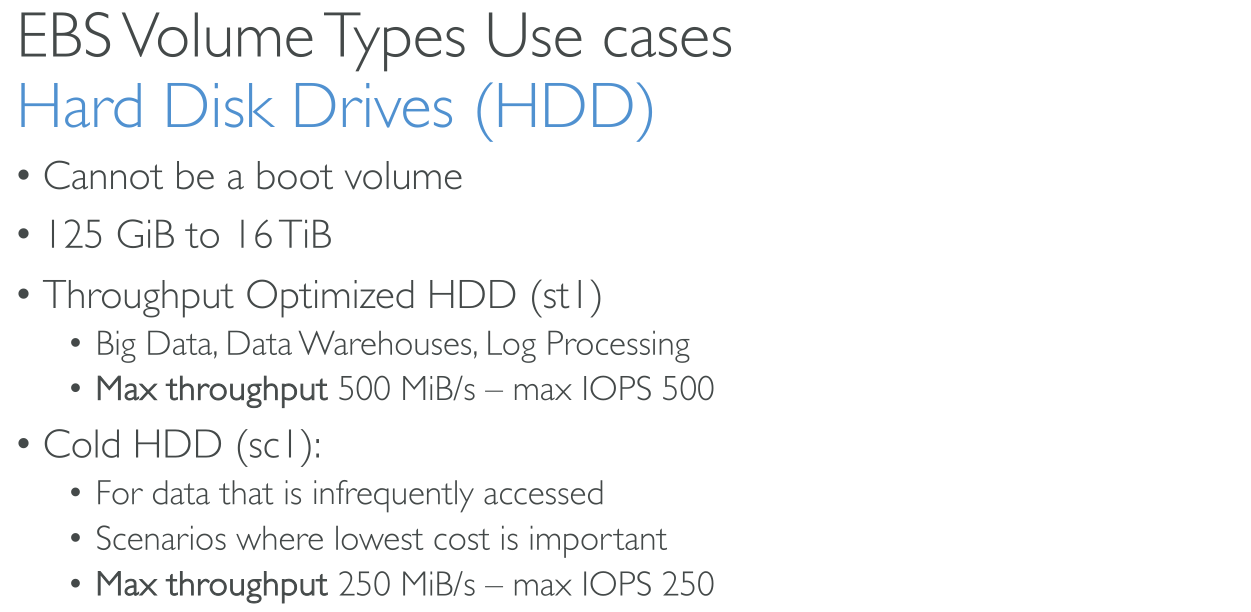
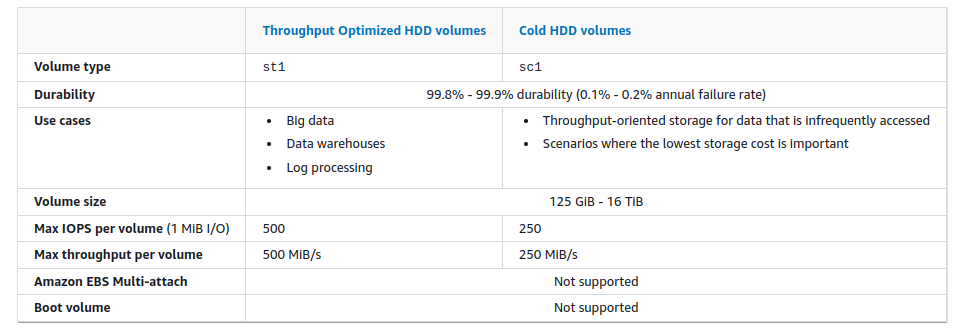
Throughput Optimized HDD (st1)
Size: 125GiB → 16TiB IOPS: Max 500 IOPS but the block size is 1MiB. So max throughput is 500 MiB/s. Throughput: max 500 MiB/s.
It uses a credit system like GP2.
NOT for BOOT volumes.
Use cases:
-
On a budget scenarios
-
Sequential reads
-
Frequently accessed data
-
Throughput intensive workloads
-
Big Data
-
Data Warehouses
-
Log processing
Amazon EBS Multi-Attach
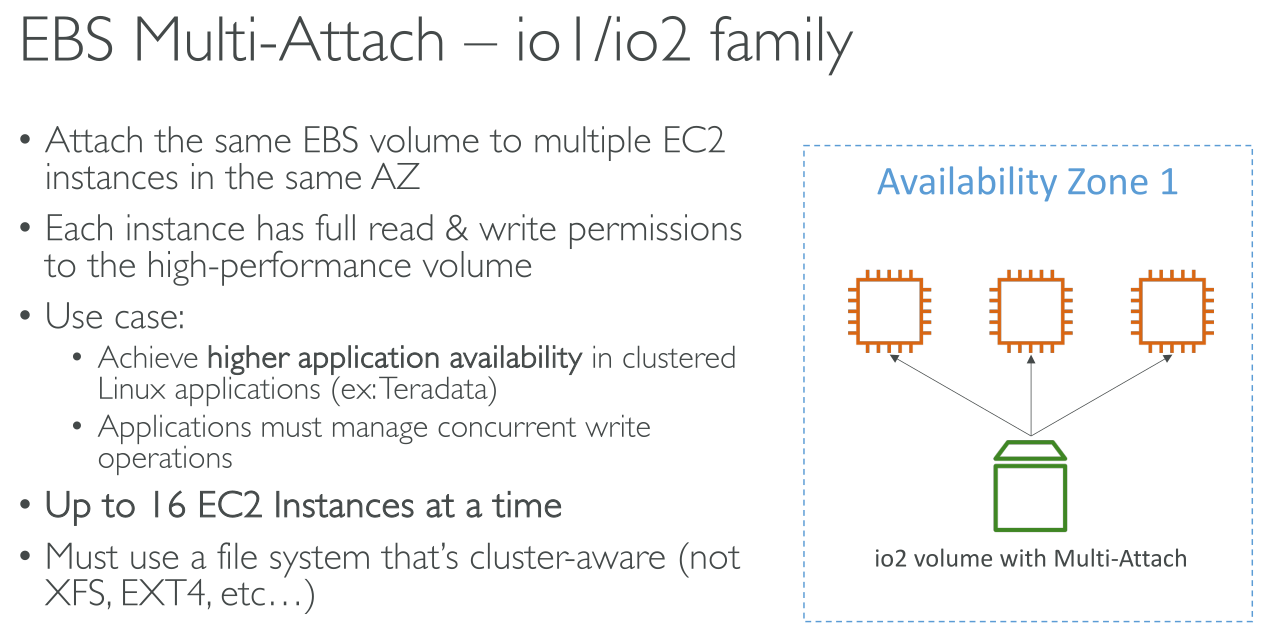
Amazon EBS Multi-Attach enables you to attach a single Provisioned IOPS SSD (io1 or io2) volume to multiple instances that are in the same Availability Zone. You can attach multiple Multi-Attach enabled volumes to an instance or set of instances. Each instance to which the volume is attached has full read and write permission to the shared volume. Multi-Attach makes it easier for you to achieve higher application availability in applications that manage concurrent write operations.
Max number of instances: 16
A CLUSTER-AWARE filesystem is needed!
Modify a volume
With Amazon EBS Elastic Volumes, you can increase the volume size, change the volume type, or adjust the performance of your EBS volumes. If your instance supports Elastic Volumes, you can do so without detaching the volume or restarting the instance. This enables you to continue using your application while the changes take effect.
Snapshots
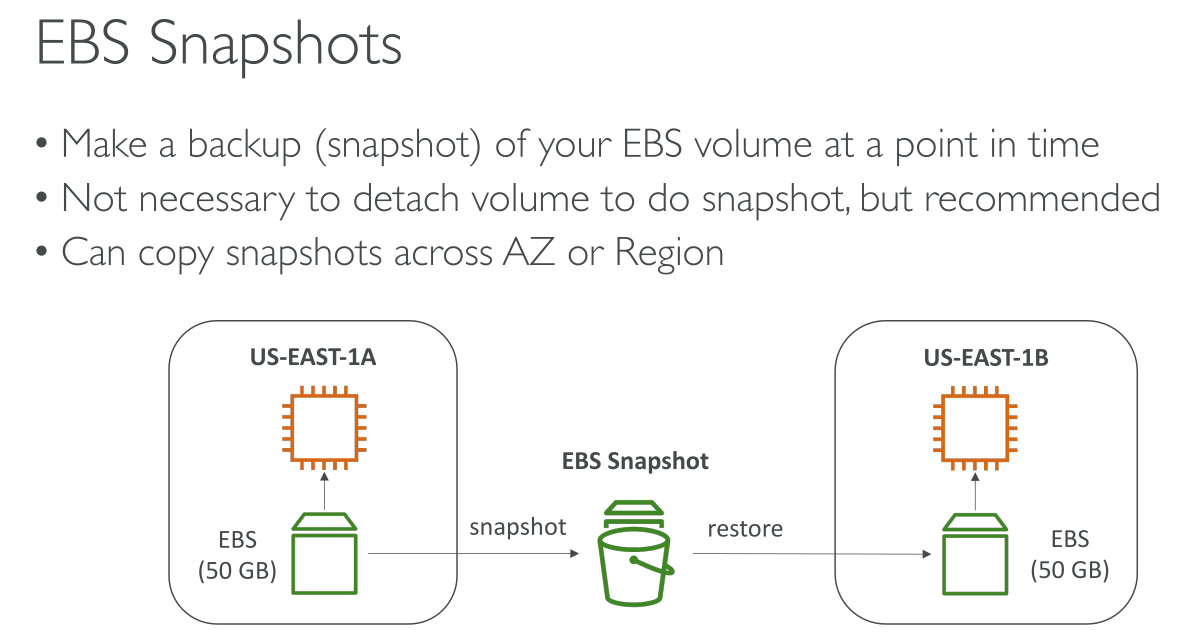
Amazon EBS provides the ability to create snapshots (backups) of any EBS volume and write a copy of the data in the volume to Amazon S3, where it is stored redundantly in multiple Availability Zones, they’re region resilient.
The volume does not need to be attached to a running instance in order to take a snapshot. As you continue to write data to a volume, you can periodically create a snapshot of the volume to use as a baseline for new volumes.
These snapshots can be used to create multiple new EBS volumes or move volumes across Availability Zones. By optionally specifying a different Availability Zone, you can use this functionality to create a duplicate volume in that zone.
Also, you can copy snapshots across regions thanks to S3 Replication.
Snapshots of encrypted EBS volumes are automatically encrypted.
When you create snapshots, you incur charges in Amazon S3 based on the size of the data being backed up, not the size of the source volume.
Subsequent snapshots of the same volume are incremental snapshots. They include only changed and new data written to the volume since the last snapshot was created, and you are charged only for this changed and new data.
The snapshot deletion process is designed so that you need to retain only the most recent snapshot. Usually, with incremental backups, loosing an intermediate snapshot breaks all the subsequent backups up untill the next full backup, this is not the case with EBS snapshots. When a snapshot is deleted, data is migrated so that subsequent incremental snapshot are still valid.
When you create an EBS volume based on a snapshot, the new volume begins as an exact replica of the volume that was used to create the snapshot. The replicated volume loads data lazily in the background so that you can begin using it immediately. If you access data that hasn’t been loaded yet, the volume immediately downloads the requested data from Amazon S3, and then continues loading the rest of the volume’s data in the background. This affects performance. To mitigate this you can:
-
Use tools like
ddto force block reads on every block. At no cost. -
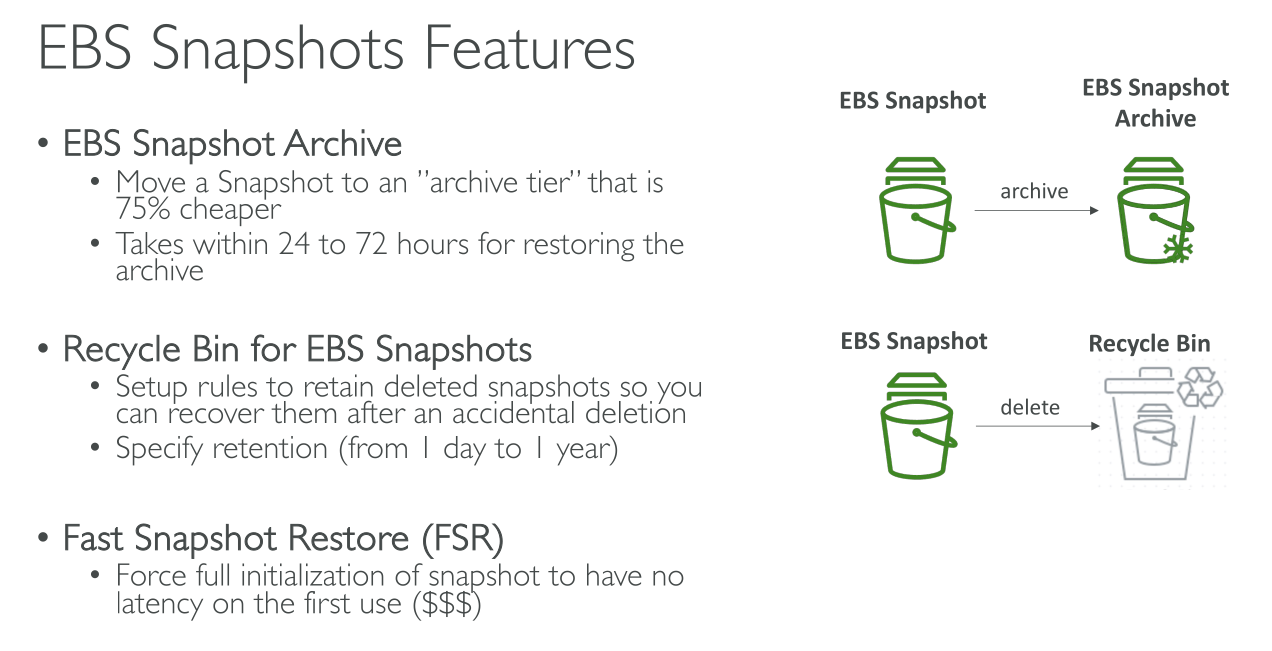
Use Fast Snapshot Restore (FSR). At additional cost. You can have 50 in a region.
The size of a full snapshot is determined by the size of the data being backed up, not the size of the source volume. Similarly, the storage costs associated with a full snapshot is determined by the size of the snapshot, not the size of the source volume. Similarly, the size and storage costs of an incremental snapshot are determined by the size of any data that was written to the volume since the previous snapshot was created. Continuing this example, if you create a second snapshot of the 200 GiB volume after changing 20 GiB of data and adding 10 GiB of data, the incremental snapshot is 30 GiB in size. You are then billed for that additional 30 GiB snapshot storage.
Considerations
-
When you create a snapshot for an EBS volume that serves as a root device, we recommend that you stop the instance before taking the snapshot.
-
You cannot create snapshots from instances for which hibernation is enabled, or from hibernated instances. If you create a snapshot or AMI from an instance that is hibernated or has hibernation enabled, you might not be able to connect to a new instance that is launched from the AMI, or from an AMI that was created from the snapshot.
Amazon EBS fast snapshot restore
Amazon EBS fast snapshot restore (FSR) enables you to create a volume from a snapshot that is fully initialized at creation. This eliminates the latency of I/O operations on a block when it is accessed for the first time. Volumes that are created using fast snapshot restore instantly deliver all of their provisioned performance.
Multi-volume snapshots
Multi-volume snapshots allow you to take exact point-in-time, data coordinated, and crash-consistent snapshots across multiple EBS volumes attached to an EC2 instance. You are no longer required to stop your instance or to coordinate between volumes to ensure crash consistency, because snapshots are automatically taken across multiple EBS volumes.
Encryption support for snapshots
-
Snapshots of encrypted volumes are automatically encrypted.
-
Volumes that you create from encrypted snapshots are automatically encrypted.
-
Volumes that you create from an unencrypted snapshot that you own or have access to can be encrypted on-the-fly.
-
When you copy an unencrypted snapshot that you own, you can encrypt it during the copy process.
-
When you copy an encrypted snapshot that you own or have access to, you can reencrypt it with a different key during the copy process.
-
The first snapshot you take of an encrypted volume that has been created from an unencrypted snapshot is always a full snapshot.
-
The first snapshot you take of a reencrypted volume, which has a different CMK compared to the source snapshot, is always a full snapshot.
Share a snapshot
When you share an encrypted snapshot, you must also share the customer managed key used to encrypt the snapshot. You can apply cross-account permissions to a customer managed key either when it is created or at a later time.
Archive Amazon EBS snapshots
Amazon EBS Snapshots Archive is a new storage tier that you can use for low-cost, long-term storage of your rarely-accessed snapshots that do not need frequent or fast retrieval. By default, when you create a snapshot, it is stored in the Amazon EBS Snapshot Standard tier (standard tier). Snapshots stored in the standard tier are incremental. This means that only the blocks on the volume that have changed after your most recent snapshot are saved.
When you archive a snapshot, the incremental snapshot is converted to a full snapshot, and it is moved from the standard tier to the Amazon EBS Snapshots Archive tier (archive tier). Full snapshots include all of the blocks that were written to the volume at the time when the snapshot was created.
Amazon EBS Snapshots Archive offers up to 75 percent lower snapshot storage costs for snapshots that you plan to store for 90 days or longer. The minimum archive period is 90 days. If you delete or permanently restore an archived snapshot before the minimum archive period of 90 days, you are billed for remaining days in the archive tier, rounded to the nearest hour.
It can take up to 72 hours to restore an archived snapshot from the archive tier to the standard tier, depending on the size of the snapshot.
If you delete an archived snapshot that matches a Recycle Bin retention rule, the archived snapshot is retained in the Recycle Bin for the retention period defined in the retention rule. To use the snapshot, you must first recover it from the Recycle Bin and then restore it from the archive tier.
Amazon Data Lifecycle Manager
You can create snapshot lifecycle policies to automate the creation and retention of snapshots of individual volumes and multi-volume snapshots of instances. For more information, see Amazon Data Lifecycle Manager.
Recycle Bin for snapshots
Recycle Bin is a data recovery feature that enables you to restore accidentally deleted Amazon EBS snapshots and EBS-backed AMIs. When using Recycle Bin, if your resources are deleted, they are retained in the Recycle Bin for a time period that you specify before being permanently deleted. You can restore a resource from the Recycle Bin at any time before its retention period expires.