User data & Metadata
User Data
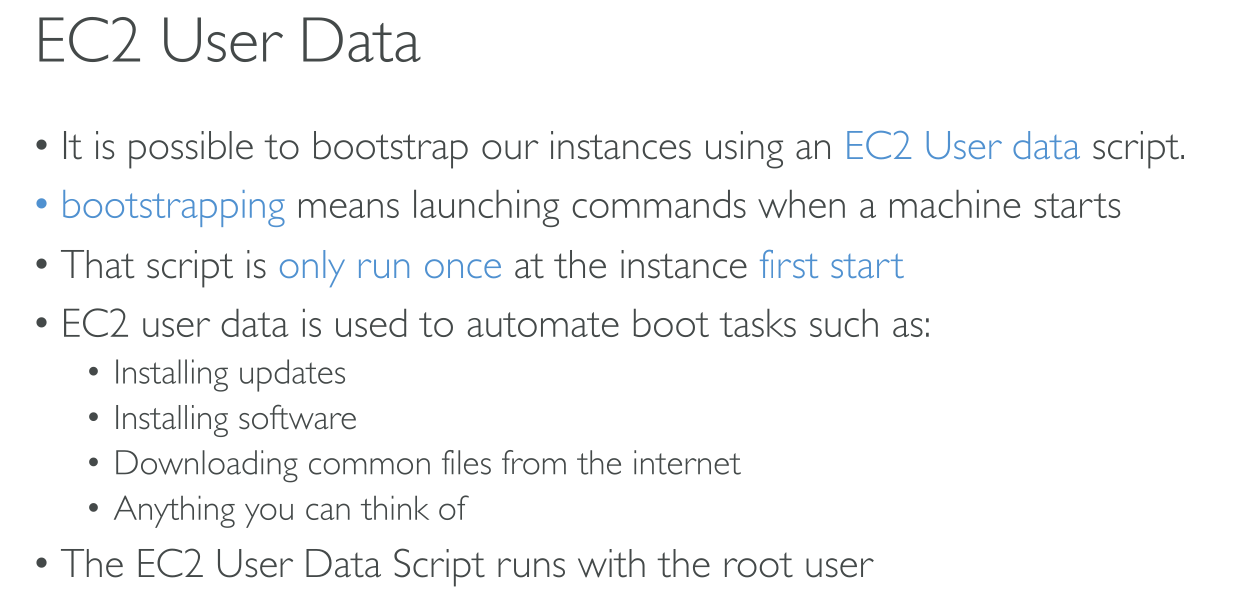
You can pass two types of user data to Amazon EC2: shell scripts and cloud-init directives. You can also pass this data into the launch instance wizard as plain text, as a file (this is useful for launching instances using the command line tools), or as base64-encoded text (for API calls).
User data is evaluated and executed only once when the instance is created. You can edit the data afterwards, but it won’t be executed.
User data endpoint: http://169.254.169.254/latest/user-data
You can pass in a cloud-init configuration and/or a shell script. But the max size of the data is limited to 16KiB.
|
When you have to install software on several instances and then configure it, it’s wiser to perform the installation and bake it in a custom AMI, while the configuration can happen in the User Data. |
Shell scripts
User data shell scripts must start with the #! characters and the path to the interpreter you want to read the script (commonly /bin/bash).
CLI
⇒ User data as string:
$ # With run-instances, the AWS CLI performs base64 encoding of the user data for you
$ aws ec2 run-instances --image-id ami-abcd1234 --count 1 --instance-type m3.medium \
--key-name my-key-pair --subnet-id subnet-abcd1234 --security-group-ids sg-abcd1234 \
--user-data echo user data
⇒ From plaintext file:
$ aws ec2 run-instances --image-id ami-abcd1234 --count 1 --instance-type m3.medium \
--key-name my-key-pair --subnet-id subnet-abcd1234 --security-group-ids sg-abcd1234 \
--user-data file://my_script.txt
⇒ Clear data:
$ aws ec2 modify-instance-attribute --instance-id i-1234567890abcdef0 --user-data Value=Combine shell script and cloud-init
Content-Type: multipart/mixed; boundary="//"
MIME-Version: 1.0

--//
Content-Type: text/cloud-config; charset="us-ascii"
MIME-Version: 1.0
Content-Transfer-Encoding: 7bit
Content-Disposition: attachment; filename="cloud-config.txt"

#cloud-config
cloud-init directives

--//
Content-Type: text/x-shellscript; charset="us-ascii"
MIME-Version: 1.0
Content-Transfer-Encoding: 7bit
Content-Disposition: attachment; filename="userdata.txt"

#!/bin/bash
shell script commands
--//--
Metadata
Metadata endpoint: http://169.254.169.254/latest/meta-data
This is a link-local address, it cannot b ereached from outside the EC2 instance.
Official EC2 Metadata tool: http://s3.amazonaws.com/ec2metadata/ec2-metadata
If you want to restrict it you need to do so using firewall rules. While attempting to GET v1 and v2 endpoints results in a 401, obtaining a token is as simple as TOKEN=`curl -X PUT "http://169.254.169.254/latest/api/token" -H "X-aws-ec2-metadata-token-ttl-seconds: 21600"`.
Allows access to:
-
Environment information
-
Netorking information
-
Authentication information
-
Role of the instance
-
Temporary SSH keys
-
-
User Data information
$ TOKEN=`curl -X PUT -H "X-aws-ec2-metadata-token-ttl-seconds: 21600"` \
"http://169.254.169.254/latest/api/token"$ curl -H "X-aws-ec2-metadata-token: $TOKEN" \
http://169.254.169.254/latest/meta-data/
ami-id
ami-launch-index
ami-manifest-path
block-device-mapping/
events/
hostname
identity-credentials/
instance-action
instance-id
instance-life-cycle
instance-type
local-hostname
local-ipv4
mac
managed-ssh-keys/
metrics/
network/
placement/
profile
public-hostname
public-ipv4
public-keys/
reservation-id
security-groups
services/
system# Only the 'metatest' keypair was associated
$ curl -H "X-aws-ec2-metadata-token: $TOKEN" \
http://169.254.169.254/latest/meta-data/public-keys
0=metatest
$ curl -H "X-aws-ec2-metadata-token: $TOKEN" \
http://169.254.169.254/latest/meta-data/public-keys/0
openssh-key
$ curl -H "X-aws-ec2-metadata-token: $TOKEN" \
http://169.254.169.254/latest/meta-data/public-keys/0/openssh-key
ssh-ed25519 AAAAC3NzaC1lZDI1NTE5AAAAIGDJbF/pl1GNCwflx2PCQtL041Padm2Ul7xgNPQBrqFs metatest$ curl -H "X-aws-ec2-metadata-token: $TOKEN" \
http://169.254.169.254/latest/dynamic/instance-identity/document
{
"accountId" : "727906252899",
"architecture" : "x86_64",
"availabilityZone" : "eu-north-1b",
"billingProducts" : null,
"devpayProductCodes" : null,
"marketplaceProductCodes" : null,
"imageId" : "ami-03c3351e3ce9d04eb",
"instanceId" : "i-04a984b42668c4d9b",
"instanceType" : "t3.micro",
"kernelId" : null,
"pendingTime" : "2024-05-10T10:28:50Z",
"privateIp" : "172.31.46.195",
"ramdiskId" : null,
"region" : "eu-north-1",
"version" : "2017-09-30"
}