AMI
Show slides
General
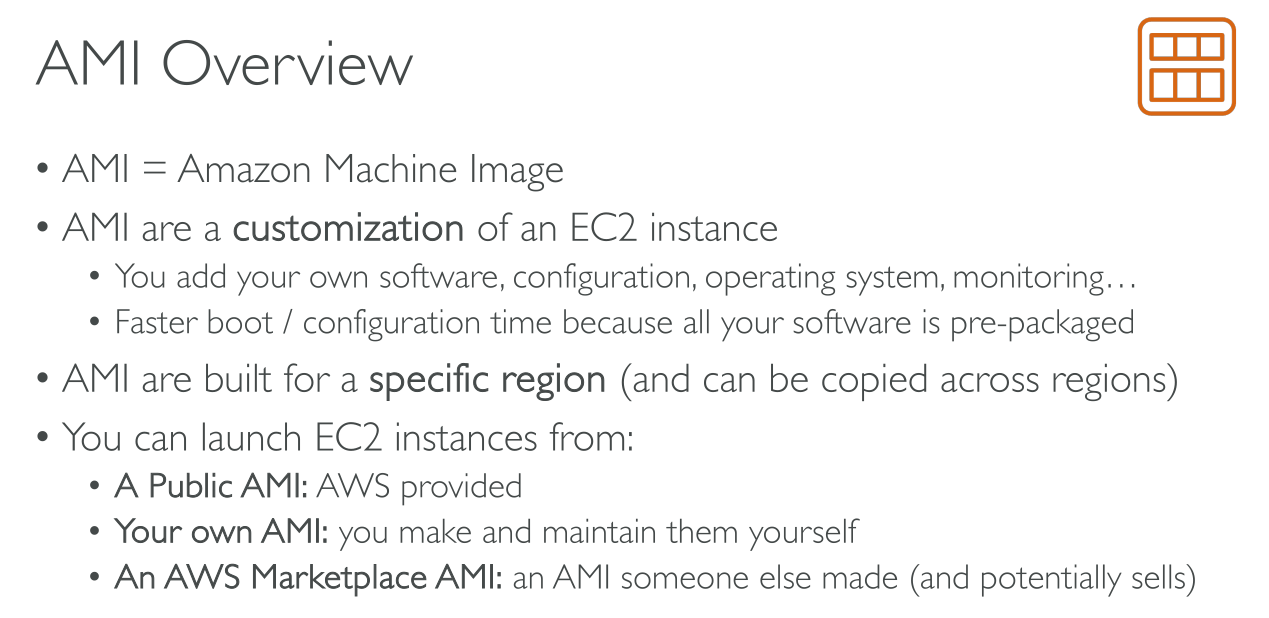
An AMI includes the following:
-
One or more Amazon Elastic Block Store (Amazon EBS) snapshots, or, for instance-store-backed AMIs, a template for the root volume of the instance (for example, an operating system, an application server, and applications).
-
A block device mapping that specifies the volumes to attach to the instance when it’s launched.
-
Launch permissions (Availability) that control which AWS accounts can use the AMI to launch instances.
-
Public: anyone can use it.
-
Private: only the AWS account it was created in can use it. Optionally:
-
Shared with another account
-
The Create Volume permission can be made available: if this permission is enabled and set, an EBS volume can be created from the snapshots the AMI relies on.
-
-
Shared with an organization or Organizational Unit.
-
-
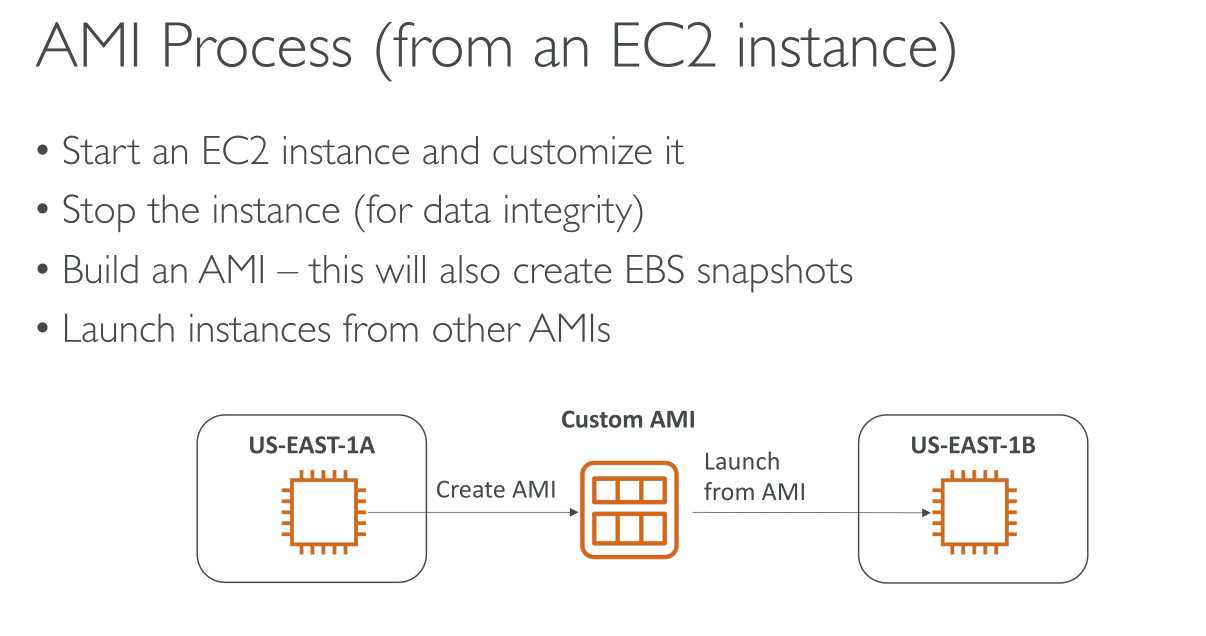
AMIs are a regional resource.
When an AMI is created a snapshot of all the volumes is created as long as their IDs (/dev/xvdX). When you create an instance from that AMI snapshot are referenced and volumes are created from those. It follows that you’re billed for those snapshots.
AMI types
You can select an AMI to use based on the following characteristics:
-
Region
-
Operating system
-
Architecture (32-bit or 64-bit)
-
Launch permissions:
-
public: The owner grants launch permissions to all AWS accounts
-
explicit: The owner grants launch permissions to specific AWS accounts, organizations, or organizational units (OUs)
-
implicit: The owner has implicit launch permissions for an AMI
-
-
Storage for the root device
-
Storage for additional volumes
Storage for the root device
-
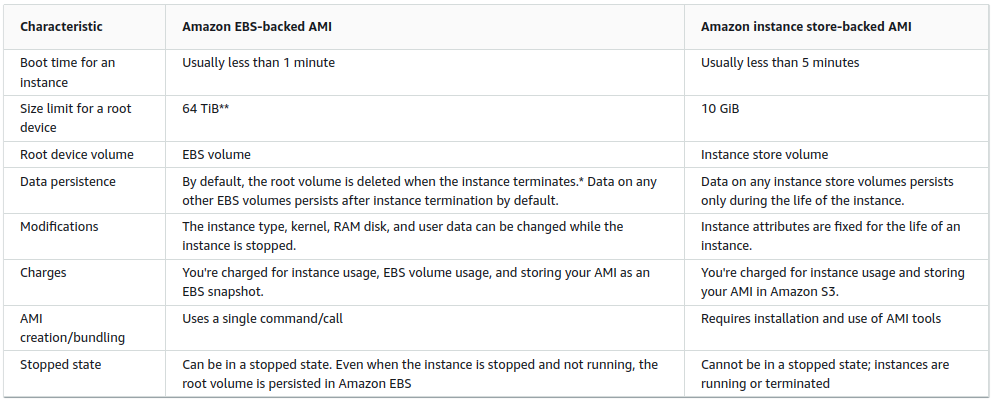
Amazon EBS-backed AMI
-
Amazon instance store-backed AMI – The root device for an instance launched from the AMI is an instance store volume created from a template stored in Amazon S3.
Notes:
-
By default, EBS root volumes have the DeleteOnTermination flag set to true. For information about how to change this flag so that the volume persists after termination
Running AMIs
Stopped state
You can stop an instance that has an EBS volume for its root device, but you can’t stop an instance that has an instance store volume for its root device
Booting
Instances launched from an Amazon EBS-backed AMI launch faster than instances launched from an instance store-backed AMI.
When you launch an instance from an instance store-backed AMI, all the parts have to be retrieved from Amazon S3 before the instance is available
With an Amazon EBS-backed AMI, only the parts required to boot the instance need to be retrieved from the snapshot before the instance is available
However, the performance of an instance that uses an EBS volume for its root device is slower for a short time while the remaining parts are retrieved from the snapshot and loaded into the volume
When you stop and restart the instance, it launches quickly, because the state is stored in an EBS volume
Boot modes
When the boot mode parameter is set to uefi, EC2 attempts to launch the instance on UEFI. If the operating system is not configured to support UEFI, the instance launch will be unsuccessful
You can create AMIs that support both UEFI and Legacy BIOS by using the uefi-preferred boot mode parameter. When the boot mode parameter is set to uefi-preferred, and if the instance type supports UEFI, the instance is launched on UEFI. If the instance type does not support UEFI, the instance is launched on Legacy BIOS
Some features, like UEFI Secure Boot, are only available on instances that boot on UEFI. When you use the uefi-preferred AMI boot mode parameter with an instance type that does not support UEFI, the instance will launch as Legacy BIOS and the UEFI-dependent feature will be disabled
Default boot modes for instance types:
-
Graviton instance types: UEFI
-
Intel and AMD instance types: Legacy BIOS
UEFI boot is not supported in Local Zones, Wavelength Zones, or with AWS Outposts.
See the available instance types for Linux that support UEFI in a specific Region:
$ aws ec2 describe-instance-types --filters Name=supported-boot-mode,Values=uefi --query "InstanceTypes[*].[InstanceType]" --output text | sortDetermine the supported boot modes of an instance type:
$ aws ec2 describe-instance-types --region us-east-1 --instance-types m5.2xlarge --query "InstanceTypes[*].SupportedBootModes"Requirements for UEFI boot:
-
Operating system supporting UEFI
-
AMI boot mode parameter set to
uefioruefi-preferred
Billing
With AMIs backed by instance store, you’re charged for instance usage and storing your AMI in Amazon S3
With AMIs backed by Amazon EBS, you’re charged for instance usage, EBS volume storage and usage, and storing your AMI as an EBS snapshot
With Amazon EC2 instance store-backed AMIs, each time you customize an AMI and create a new one, all of the parts are stored in Amazon S3 for each AMI. So, the storage footprint for each customized AMI is the full size of the AMI. For Amazon EBS-backed AMIs, each time you customize an AMI and create a new one, only the changes are stored. So, the storage footprint for subsequent AMIs that you customize after the first is much smaller, resulting in lower AMI storage charges
Shared AMIs
Find a shared AMI (AWS CLI):
⇒ All Public AMIs
$ aws ec2 describe-images --executable-users all⇒ Explicitly permitted to the current user
$ aws ec2 describe-images --executable-users self⇒ By verified providers
$ aws ec2 describe-images \
    --owners amazon aws-marketplace \
    --query 'Images[*].[ImageId]' \
    --output text
⇒ Filter by account
$ aws ec2 describe-images --owners 123456789012⇒ Filter by EBS-backed root device:
$ aws ec2 describe-images --filters "Name=root-device-type,Values=ebs"⇒ Search for arm64 AMIs owned by amazon (and public). E.g.: for Graviton machines
$ aws ec2 describe-images --filters "Name=architecture,Values=arm64" "Name=owner-alias,Values=amazon" "Name=is-public,Values=true"