Autoscaling Groups (ASG)
Show slides
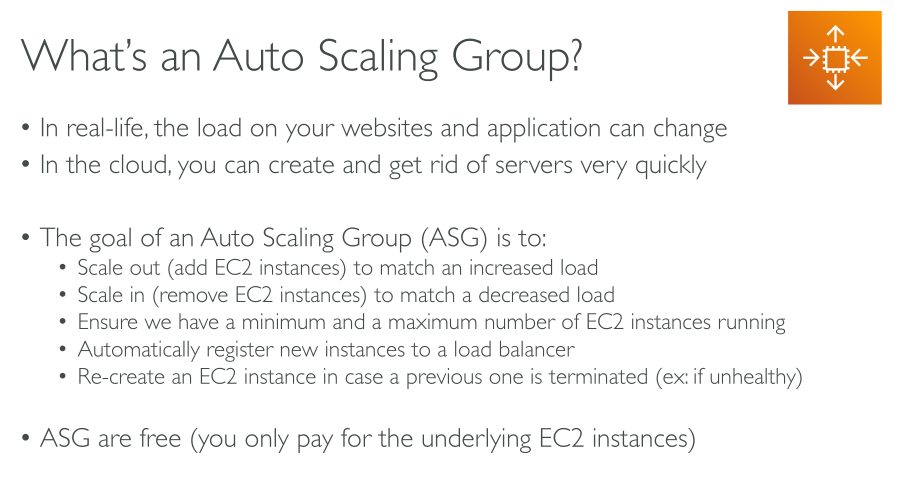
Features
-
Monitoring the health of running instances
-
Custom health checks: in addition to the built-in health checks, you can define custom health checks that are specific to your application to verify that it’s responding as expected. If an instance fails your custom health check, it’s automatically replaced to maintain your desired capacity.
-
Balancing capacity across Availability Zones: Amazon EC2 Auto Scaling automatically tries to maintain equivalent numbers of instances in each enabled Availability Zone. Amazon EC2 Auto Scaling does this by attempting to launch new instances in the Availability Zone with the fewest instances. If there are multiple subnets chosen for the Availability Zone, Amazon EC2 Auto Scaling selects a subnet from the Availability Zone at random. If the attempt fails, however, Amazon EC2 Auto Scaling attempts to launch the instances in another Availability Zone until it succeeds. When rebalancing, Amazon EC2 Auto Scaling launches new instances before terminating the earlier ones. This way, rebalancing does not compromise the performance or availability of your application.
-
Multiple instance types and purchase options
-
Automated replacement of Spot Instances
-
Load balancing
-
Scalability
-
Instance refresh: the instance refresh feature provides a mechanism to update instances in a rolling fashion when you update your AMI or launch template. You can also use a phased approach, known as a canary deployment, to test a new AMI or launch template on a small set of instances before rolling it out to the whole group.
-
Lifecycle hooks: Lifecycle hooks are useful for defining custom actions that are invoked as new instances launch or before instances are terminated. This feature is particularly useful for building event-driven architectures, but it also helps you manage instances through their lifecycle.
-
Support for stateful workloads: Lifecycle hooks also offer a mechanism for persisting state on shut down. To ensure continuity for stateful applications, you can also use scale-in protection or custom termination policies to prevent instances with long-running processes from terminating early.
-
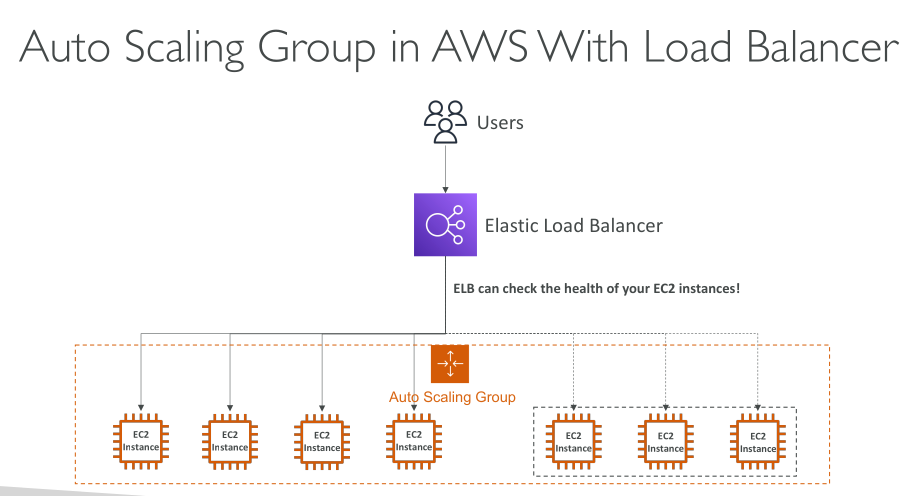
Support for using Load Balancers' health checks instead of instances health checks: the former are much more customizable and application-aware.
It’s important though to choose the right healthcheck: For example if an endpoint is chosen, that depends on DB availability, when the DB fails the check fails and the ASG will terminate the instance and recreate another. This, however, will fail to repair the situation and will result in a termination loop until the DB is restored. Health checks for ASGs should test the application itself, not its dependencies.
Benefits:
-
Better fault tolerance
-
Better availability
-
Better cost management
Health Checks
A delay of (by default) 300s is applied before health checks are taken into consideration. So you need to configure a proper grace period on the load balancer if you have an application that takes time to initialize.
-
EC2 (Defualt): Any state that is not
Runningreturns anUnhealthystatus:-
Stopping
-
Stopped
-
Terminated
-
Shutting Down
-
Impaired (not 2/2)
-
-
ELB
-
Custom: an external system with its own checks returns the health status.
Scaling Processes
These are the actions that the ASG performs during its lifecycle. They can be modified or suspended.
For instance, if you need to perform maintenance you may want these processes to be suspended and resumed once you’re done. Otherwise the instance may be considered unhealthy and terminated.
Suspending and resuming is supported for the following processes:
-
Launch: Adds instances to the Auto Scaling group when the group scales out, or when Amazon EC2 Auto Scaling chooses to launch instances for other reasons, such as when it adds instances to a warm pool. -
Terminate: Removes instances from the Auto Scaling group when the group scales in, or when Amazon EC2 Auto Scaling chooses to terminate instances for other reasons, such as when an instance is terminated for exceeding its maximum lifetime duration or failing a health check. -
AddToLoadBalancer: Adds instances to the Target Group. -
AlarmNotification: Accepts notifications from CloudWatch Alarms. -
AZRebalance: Rebalances instances among AZs. -
HealthCheck: Performs health checks -
InstanceRefresh: Terminates and recreates instances using the instance refresh feature. -
ReplaceUnHealthy: Terminates unhealthy instances and recreates them. -
ScheduledActions: Performs cheduled actions
Autoscaling policies
They’re NOT required when defining an ASG.
An ASG can be created without policies with fixed Min, Desired and Max.
Methods:
-
Manual
-
Scheduled
-
Dynamic
-
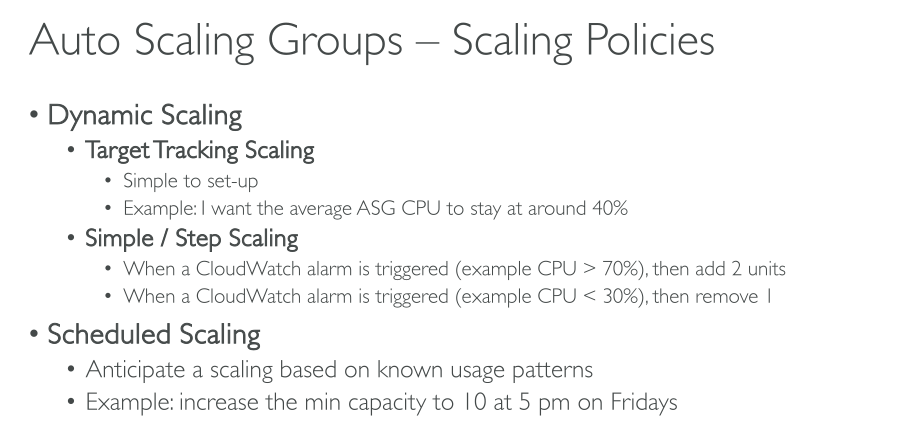
Simple: +1 when an alarm is triggered (E.g.: CPU > 50%), -1 for the opposite (CPU < 50%).
-
Step: there’s not just one threshold, scaling is regulated in steps
-
Target tracking: the ASG does its best to keep a matric below a threshold.
-
-
Predictive
Scaling limits
-
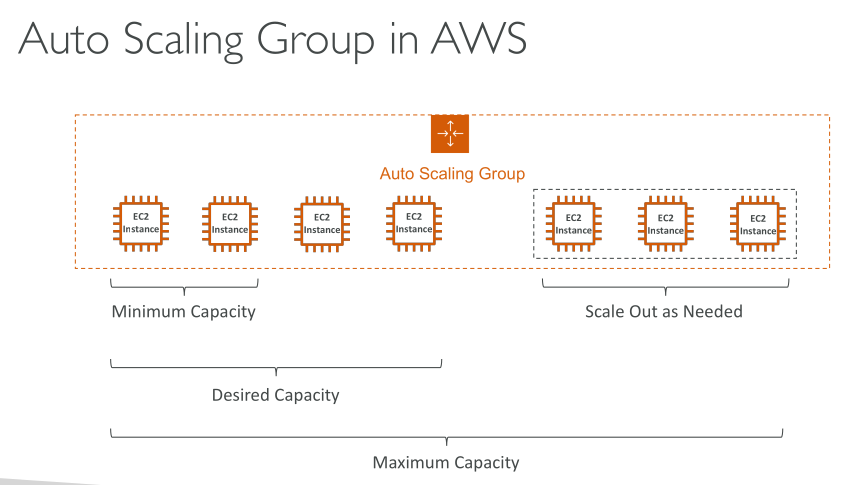
Desired capacity: the initial capacity of the Auto Scaling group at the time of creation. An Auto Scaling group attempts to maintain the desired capacity. It starts by launching the number of instances that are specified for the desired capacity, and maintains this number of instances as long as there are no scaling policies or scheduled actions attached to the Auto Scaling group.
-
Minimum capacity: the minimum group size. When scaling policies are set, they cannot decrease the group’s desired capacity lower than the minimum capacity.
-
Maximum capacity: the maximum group size. When scaling policies are set, they cannot increase the group’s desired capacity higher than the maximum capacity.
Dynamic Scaling
-
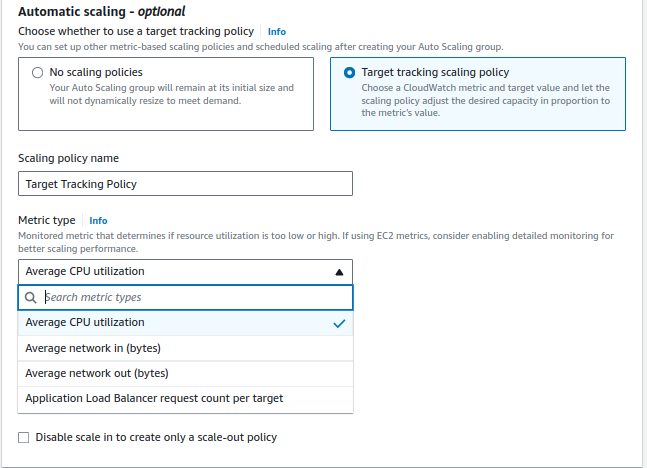
Target tracking scaling: Increase and decrease the current capacity of the group based on a Amazon CloudWatch metric and a target value.
-
Step scaling: Increase and decrease the current capacity of the group based on a set of scaling adjustments, known as step adjustments, that vary based on the size of the alarm breach.
-
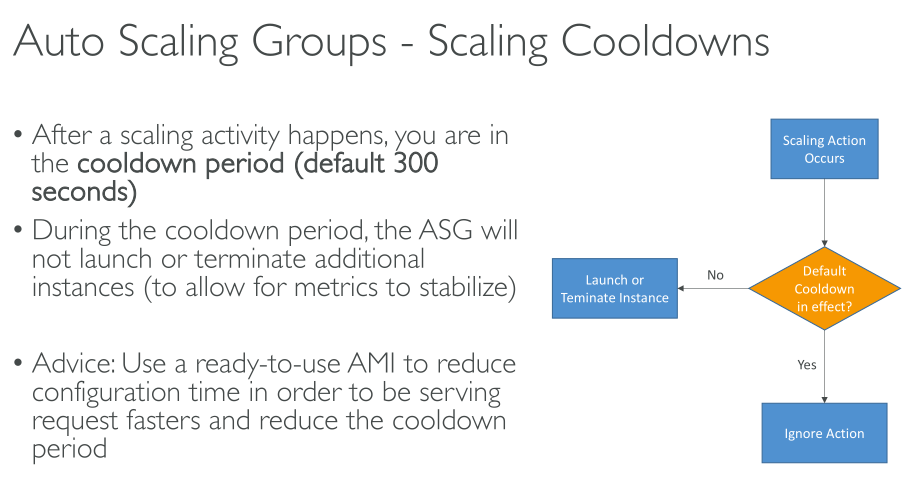
Simple scaling: Increase and decrease the current capacity of the group based on a single scaling adjustment, with a cooldown period between each scaling activity.
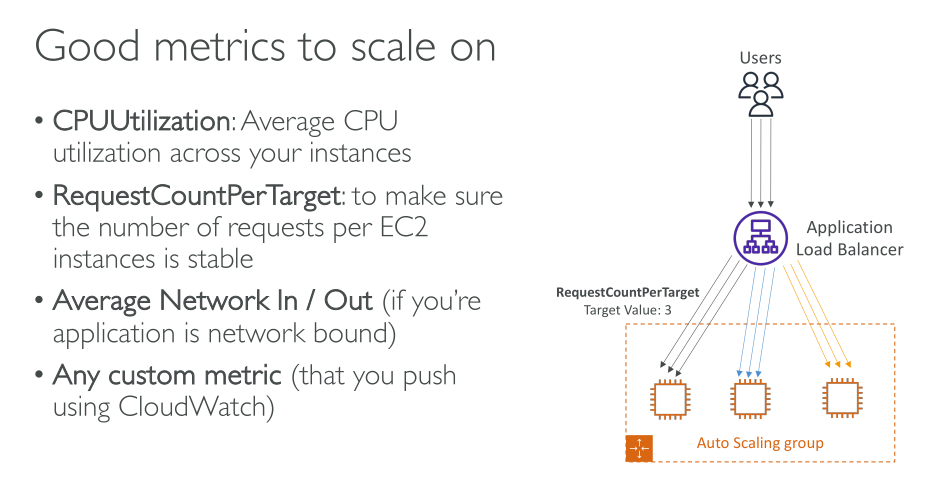
We strongly recommend that you use target tracking scaling policies and choose a metric that changes inversely proportional to a change in the capacity of your Auto Scaling group. So if you double the size of your Auto Scaling group, the metric decreases by 50 percent. This allows the metric data to accurately trigger proportional scaling events. Included are metrics like average CPU utilization or average request count per target.
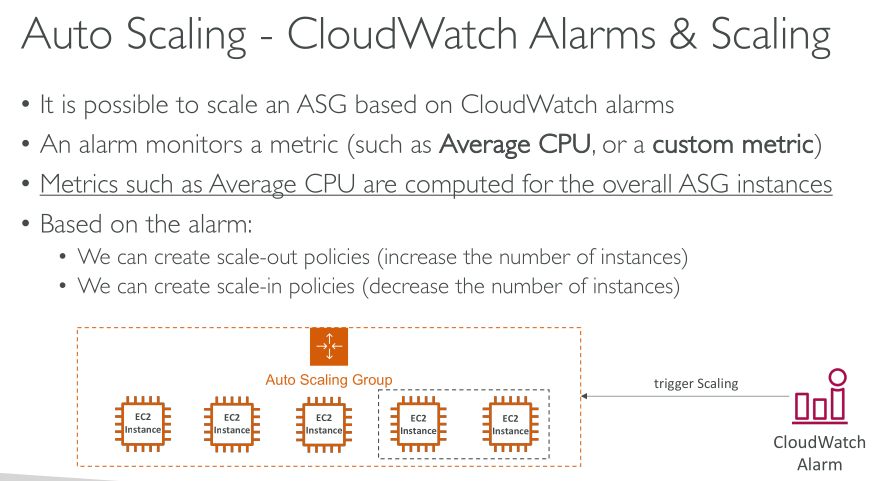
A dynamic scaling policy instructs Amazon EC2 Auto Scaling to track a specific CloudWatch metric, and it defines what action to take when the associated CloudWatch alarm is in ALARM. The metrics that are used to invoke the alarm state are an aggregation of metrics coming from all of the instances in the Auto Scaling group.
For an advanced scaling configuration, your Auto Scaling group can have more than one scaling policy. For example, you can define one or more target tracking scaling policies, one or more step scaling policies, or both.
To use custom metrics, you must create your scaling policy from the AWS CLI or an SDK.
Target tracking metrics
-
EC2:
-
Average CPU utilization
-
Average Network In
-
Average Network Out
-
-
ALB:
-
ALB Request count per target
-
-
SQS (via a custom CloudWatch metric): you need to create an alarm that measures the
ApproximateNumberOfMessagesVisible
Step scaling
To use step scaling, you first create a CloudWatch alarm that monitors a metric for your Auto Scaling group. Define the metric, threshold value, and number of evaluation periods that determine an alarm breach. Then, create a step scaling policy that defines how to scale your group when the alarm threshold is breached. You can define different step adjustments based on the breach size of the alarm. For example:
-
Scale out by 10 instances if the alarm metric reaches 60 percent
-
Scale out by 30 instances if the alarm metric reaches 75 percent
-
Scale out by 40 instances if the alarm metric reaches 85 percent
Each step adjustment specifies:
-
A lower bound for the metric value
-
An upper bound for the metric value
-
The amount by which to scale, based on the scaling adjustment type
Simple scaling
Similar to step scaling policies, simple scaling policies require you to create CloudWatch alarms for your scaling policies. In the policies that you create, you must also define whether to add or remove instances, and how many, or set the group to an exact size.
One of the main differences between step scaling policies and simple scaling policies is the step adjustments that you get with step scaling policies. With step scaling, you can make bigger or smaller changes to the size of the group based on the step adjustments that you specify.
A simple scaling policy must also wait for an in-progress scaling activity or health check replacement to complete and a cooldown period to end before it responds to additional alarms. In contrast, with step scaling, the policy continues to respond to additional alarms, even while a scaling activity or health check replacement is in progress
Predictive scaling
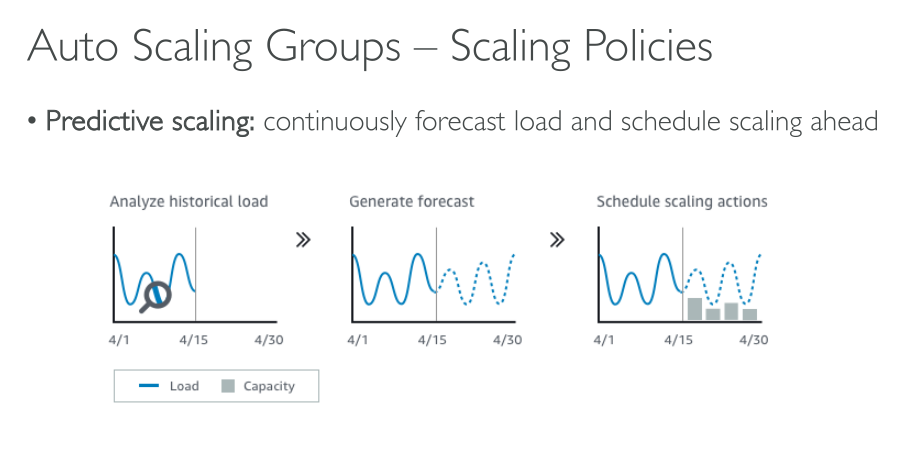
Predictive scaling works by analyzing historical load data to detect daily or weekly patterns in traffic flows. It uses this information to forecast future capacity needs so Amazon EC2 Auto Scaling can proactively increase the capacity of your Auto Scaling group to match the anticipated load.
-
Cyclical traffic, such as high use of resources during regular business hours and low use of resources during evenings and weekends.
-
Recurring on-and-off workload patterns, such as batch processing, testing, or periodic data analysis.
-
Applications that take a long time to initialize, causing a noticeable latency impact on application performance during scale-out events
To use predictive scaling, create a predictive scaling policy that specifies the CloudWatch metric to monitor and analyze. For predictive scaling to start forecasting future values, this metric must have at least 24 hours of data.
When you first enable predictive scaling, it runs in forecast only mode. In this mode, it generates capacity forecasts but does not actually scale your Auto Scaling group based on those forecasts
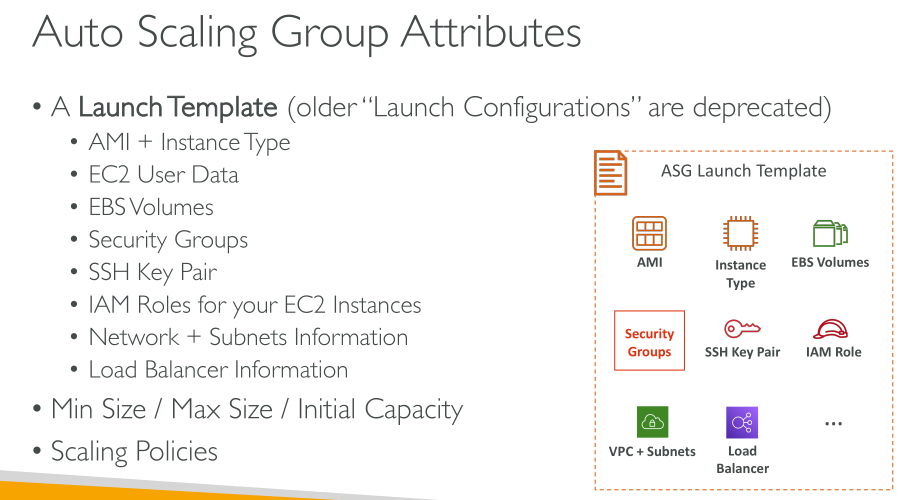
Launch templates
Defining a launch template instead of a launch configuration allows you to have multiple versions of a launch template.
With versioning of launch templates, you can create a subset of the full set of parameters. Then, you can reuse it to create other versions of the same launch template. You can create a launch template that defines a base configuration without an AMI or user data script. After you create your launch template, you can create a new version and add the AMI and user data that has the latest version of your application for testing. You can also delete the versions used for testing your application when you no longer need them.
|
Not all Amazon EC2 Auto Scaling features are available when you use launch configurations. For example, you cannot create an Auto Scaling group that launches both Spot and On-Demand Instances or that specifies multiple instance types. You must use a launch template to configure these features. |
With launch templates, you can also use newer features of Amazon EC2. This includes Systems Manager parameters (AMI ID), the current generation of EBS Provisioned IOPS volumes (io2), EBS volume tagging, T2 Unlimited instances, Capacity Reservations, Capacity Blocks, and Dedicated Hosts, to name a few.
|
When you create a launch template, all parameters are optional. However, if a launch template does not specify an AMI, you cannot add the AMI when you create your Auto Scaling group. If you specify an AMI but no instance type, you can add one or more instance types when you create your Auto Scaling group. |
Instance maintenance policy
The policy affects Amazon EC2 Auto Scaling events that cause instances to be replaced.
-
Launch before terminating: A new instance must be provisioned first before an existing instance can be terminated. This approach is a good choice for applications that favor availability over cost savings.
-
Terminate and launch: New instances are provisioned at the same time your existing instances are terminated. This approach is a good choice for applications that favor cost savings over availability. It’s also a good choice for applications that should not launch more capacity than is currently available, even when replacing instances.
-
Custom policy: This option lets you set up your policy with a custom minimum and maximum range for the amount of capacity that you want available when replacing instances.
Defaults:
-
Health-check failure, instance refresh, maximum instance lifetime: Terminate and launch
-
Rebalancing: Launch before terminating
Maintenance policy parameters
-
Desired capacity: the capacity of the Auto Scaling group at the time of creation. It is also the capacity the group attempts to maintain when there are no scaling conditions attached to the group.
-
Instance maintenance policy: an instance maintenance policy controls whether an instance is provisioned first before an existing instance is terminated for instance maintenance events. It also determines how far below and over your desired capacity your Auto Scaling group might go to replace multiple instances at the same time.
-
Maximum healthy percentage: the percentage of its desired capacity that your Auto Scaling group can increase to when replacing instances. It represents the maximum percentage of the group that can be in service and healthy, or pending, to support your workload. In the console, you can set the maximum healthy percentage when you use either the Launch before terminating option or the Custom policy option. The valid values are 100–200 percent.
-
Minimum healthy percentage: the percentage of the desired capacity to keep in service, healthy, and ready to use to support your workload when replacing instances. An instance is considered healthy and ready to use after it successfully completes its first health check and the specified warmup time passes. In the console, you can set the minimum healthy percentage when you use either the Terminate and launch option or the Custom policy option. The valid values are 0–100 percent.
Auto Scaling lifecycle hooks
These hooks let you create solutions that are aware of events in the Auto Scaling instance lifecycle, and then perform a custom action on instances when the corresponding lifecycle event occurs. A lifecycle hook provides a specified amount of time (one hour by default) to wait for the action to complete before the instance transitions to the next state.
Instances can remain in a wait state for a finite period of time. The default timeout for a lifecycle hook is one hour (heartbeat timeout). There is also a global timeout that specifies the maximum amount of time that you can keep an instance in a wait state. The global timeout is 48 hours or 100 times the heartbeat timeout, whichever is smaller.
The result of the lifecycle hook can be either abandon or continue. If an instance is launching, continue indicates that your actions were successful, and that Amazon EC2 Auto Scaling can put the instance into service. Otherwise, abandon indicates that your custom actions were unsuccessful, and that we can terminate and replace the instance. If an instance is terminating, both abandon and continue allow the instance to terminate. However, abandon stops any remaining actions, such as other lifecycle hooks, and continue allows any other lifecycle hooks to complete.
Hooks can be integrated with SNS or Eventbridge.
Warm pools
A warm pool gives you the ability to decrease latency for your applications that have exceptionally long boot times. A warm pool is a pool of pre-initialized EC2 instances that sits alongside an Auto Scaling group. Whenever your application needs to scale out, the Auto Scaling group can draw on the warm pool to meet its new desired capacity. This helps you to ensure that instances are ready to quickly start serving application traffic, accelerating the response to a scale-out event. As instances leave the warm pool, they count toward the desired capacity of the group. This is known as a warm start.
While instances are in the warm pool, your scaling policies only scale out if the metric value from instances that are in the InService state is greater than the scaling policy’s alarm high threshold (which is the same as the target utilization of a target tracking scaling policy).
Warm pool size: the size of the warm pool is calculated as the difference between the Auto Scaling group’s maximum capacity and its desired capacity.
Detach or attach instances
You can detach instances from your Auto Scaling group. After an instance is detached, that instance becomes independent and can either be managed on its own or attached to a different Auto Scaling group, separate from the original group it belonged to.
Temporarily remove instances
You can put an instance that is in the InService state into the Standby state, update or troubleshoot the instance, and then return the instance to service. Instances that are on standby are still part of the Auto Scaling group, but they do not actively handle load balancer traffic.
Recycle the instances in your Auto Scaling group
Amazon EC2 Auto Scaling offers capabilities that let you replace the Amazon EC2 instances in your Auto Scaling group after making updates, such as adding a new launch template with a new Amazon Machine Image (AMI) or adding new instance types. It also helps you streamline updates by giving you the option of including them in the same operation that replaces the instances.